5. Mail, Calendar & Contacts
The following steps set up synchronization of business email, appointments, and contacts into the native Apple apps Mail, Calendar, and Contacts.
Hint
If you do not want your business and personal data to be shown together in one app, you can disable synchronization at any time. The necessary steps are explained below.
5.1 Settings
Open the app Settings.
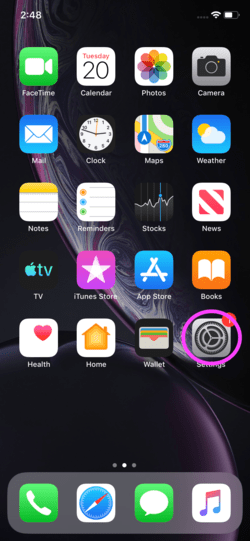
5.2 Passwords & Accounts
Tap on Passwords & Accounts.
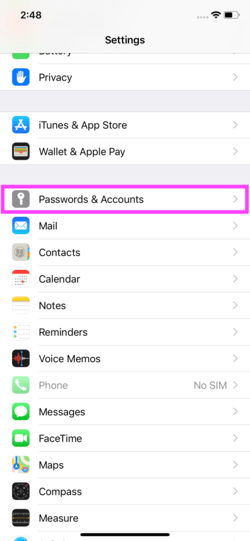
5.3 Account EAS
Tap on EAS (Office365MailProfile_Standard).
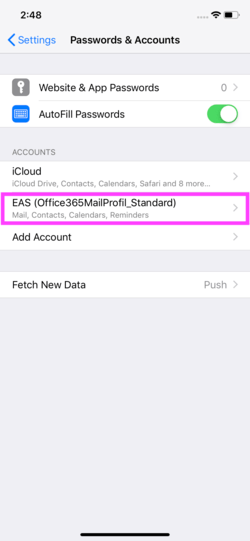
5.4 Account
Tap on Account.
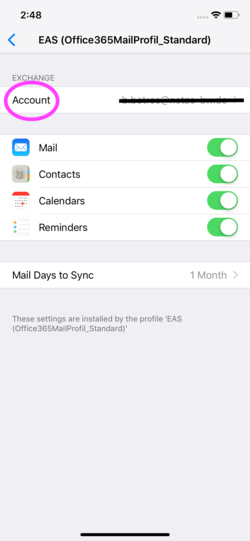
5.5 Selection of data to be synchronized
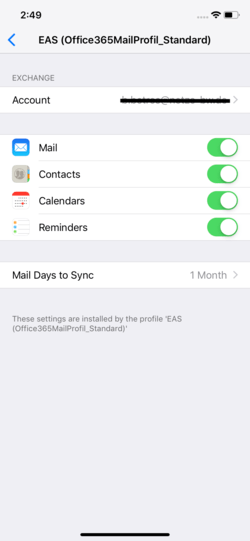
(De-) Activate the sliders for Mail, Contacts, Calendar etc. to select the business data to be available within the corresponding apps. If the sliders are enabled, your business emails, appointments and contacts will be displayed in the Apple apps Mail, Contacts and Calendar after a few minutes.
Attention
If the synchronization period Mail Days to Sync is set to Unlimited, the device can become very slow. Therefore we recommend that you do not change the default setting of 1 Month.
Attention
If you want business contacts to be displayed for incoming calls, the slider for contacts has to be activated.
Hint
In Chapter 4 you will find a description how to set up the Outlook app as an alternative to the Apple apps Mail and Calendar. If you are using the Outlook app, you can disable the sliders for Mail and/or Calendar.
5.6 BüKo-Password
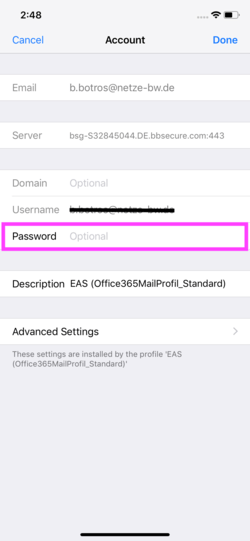
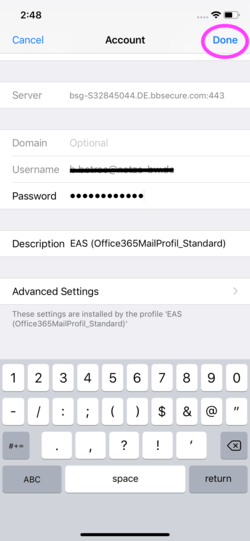
Enter your BüKo-Password in the Password field and tap Done.
Attention
If you change your BüKo-Password on your computer, you will also have to update it here.
5.7 Registration successful
If the authentication is successful, the previous view of the profile page will be opened.
Attention
If the error message Account information could not be verified is displayed, the entered password is incorrect. If you are sure that the password is correct, please contact the IT Support.