4. (optional) Set up Outlook
Note
The Outlook app must be installed via the Company Portal app.
4.1 Outlook Start
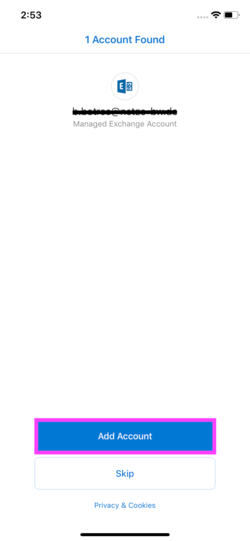
Open the Outlook app. Your business email address should already be entered here. Tap on Add account.
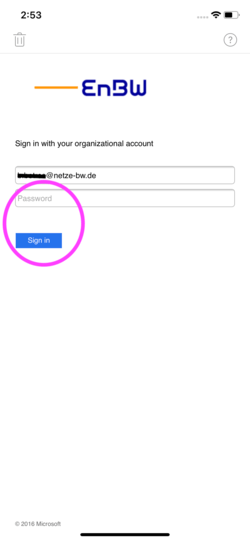
4.3 Enter password
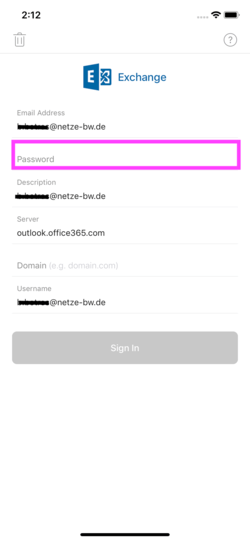
Enter your BüKo-Password and tap Sign In. The EnBW login page will open. Enter your BüKo-Password again and confirm with Sign in.
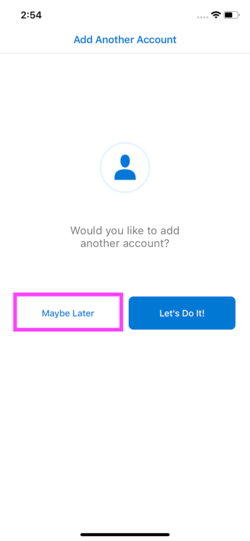
4.4 Add another account
Tap on Maybe Later
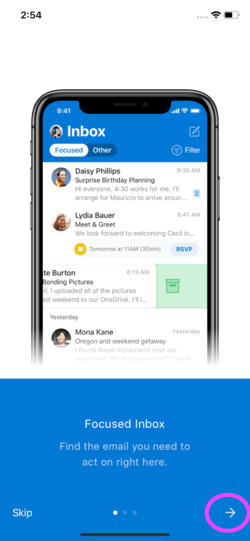
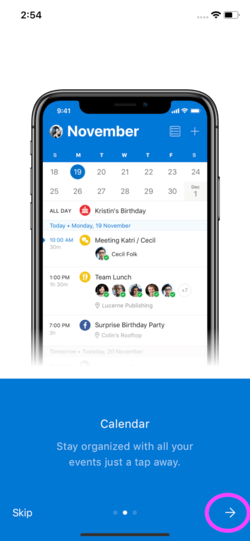
4.4 Setup wizard
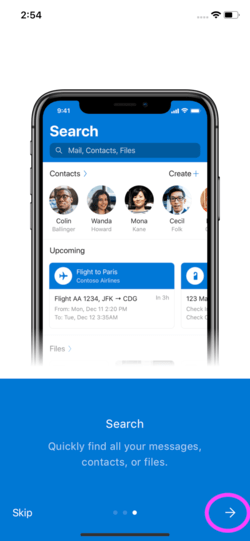
Read the instructions and tap the ➡ icon to progress through the wizard.
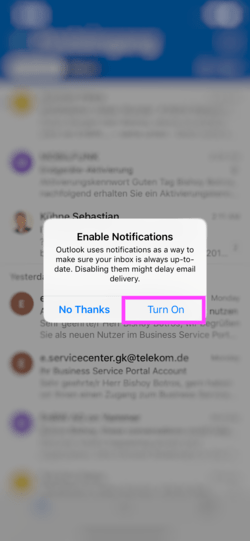
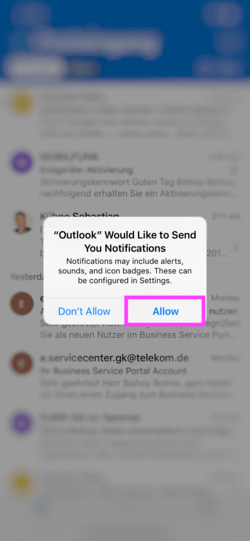
Then tap on Turn On and Allow to allow the Outlook App to notify you of new e-mails.
4.5 Calendar
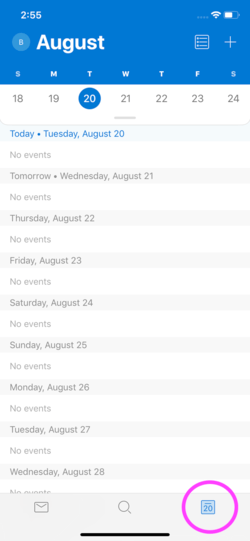
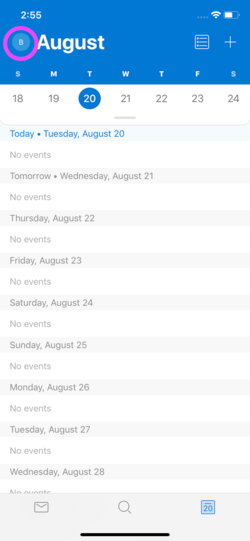
By default, the inbox will be displayed when the app is started. You can access your calendar by tapping the 📆 icon.
4.6 Menu & other folders
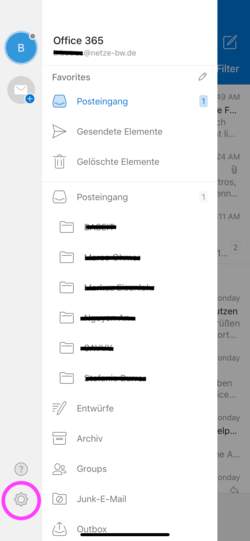
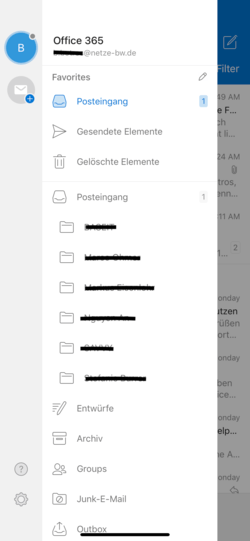
By tapping the icon in the upper left corner or by swiping from the left edge of the screen to the right, the Outlook app menu opens. Here you will find all your Outlook folders.
4.7 (optional) Other Settings
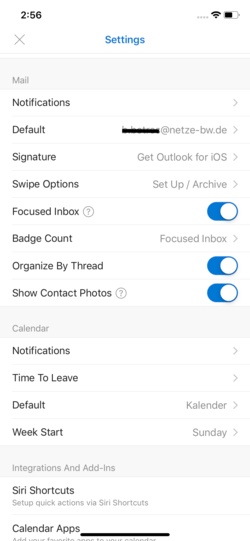
Open the menu as described in the previous step and tap the ⚙ icon. Here you can e.g. change your signature or configure the notifications.