9. Other helpful settings
The business profile is now activated and set up on your device 👍🏻. You can find more business apps in the business Play Store.
Hint
If you have any questions or problems, please contact the IT Support. You can find more help, and tips & tricks in our Viva Engage Community "Smartphones, Tablets und BYOD".
Click on a section to unveil the content and learn more about the topic.
Function key assignment
The function key is located on the right below the volume buttons. After the initial setup, the function key is assigned to the voice assistant Bixby when pressed and held.
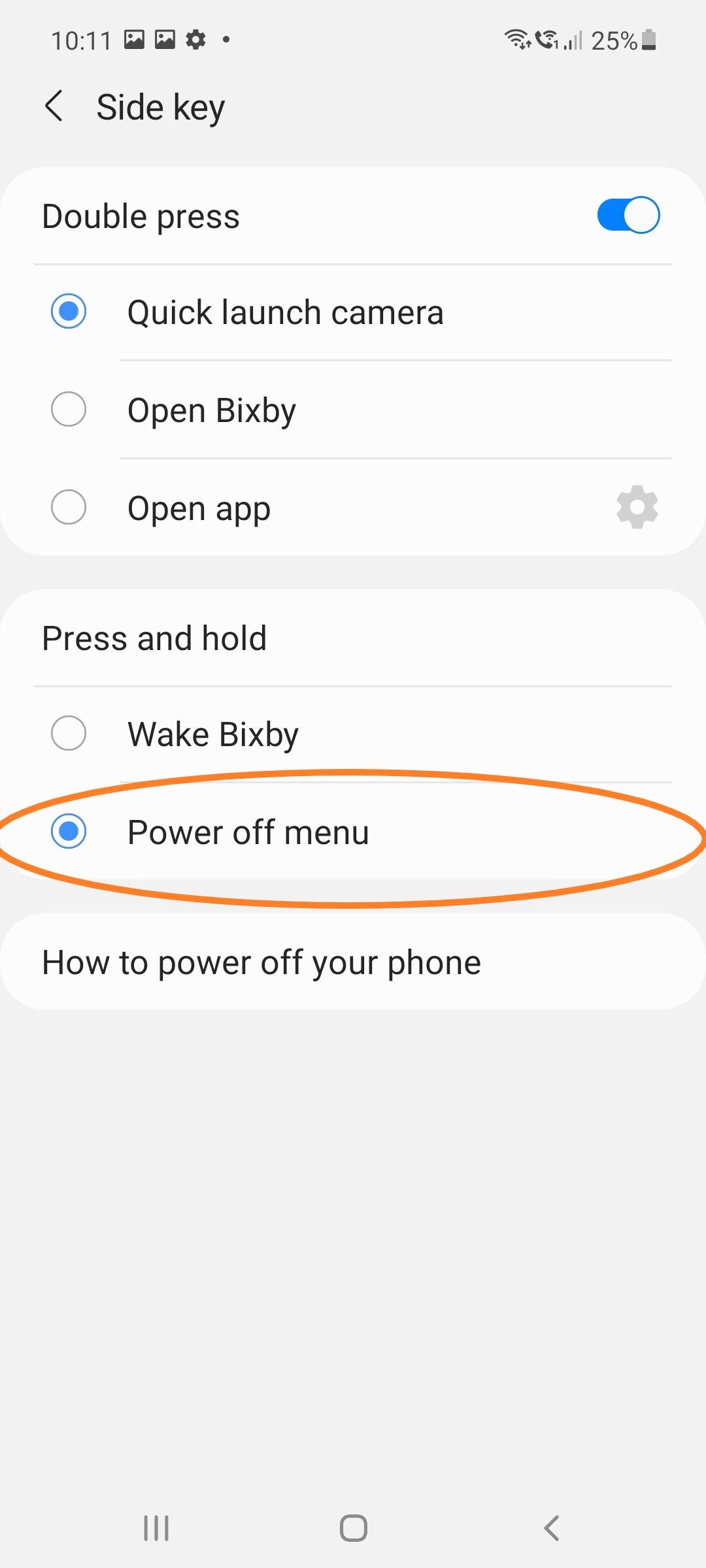
You can change the assignment so that the Power off menu opens instead of Bixby as soon as you press the button longer.
Assigning a function key to the Power off menu
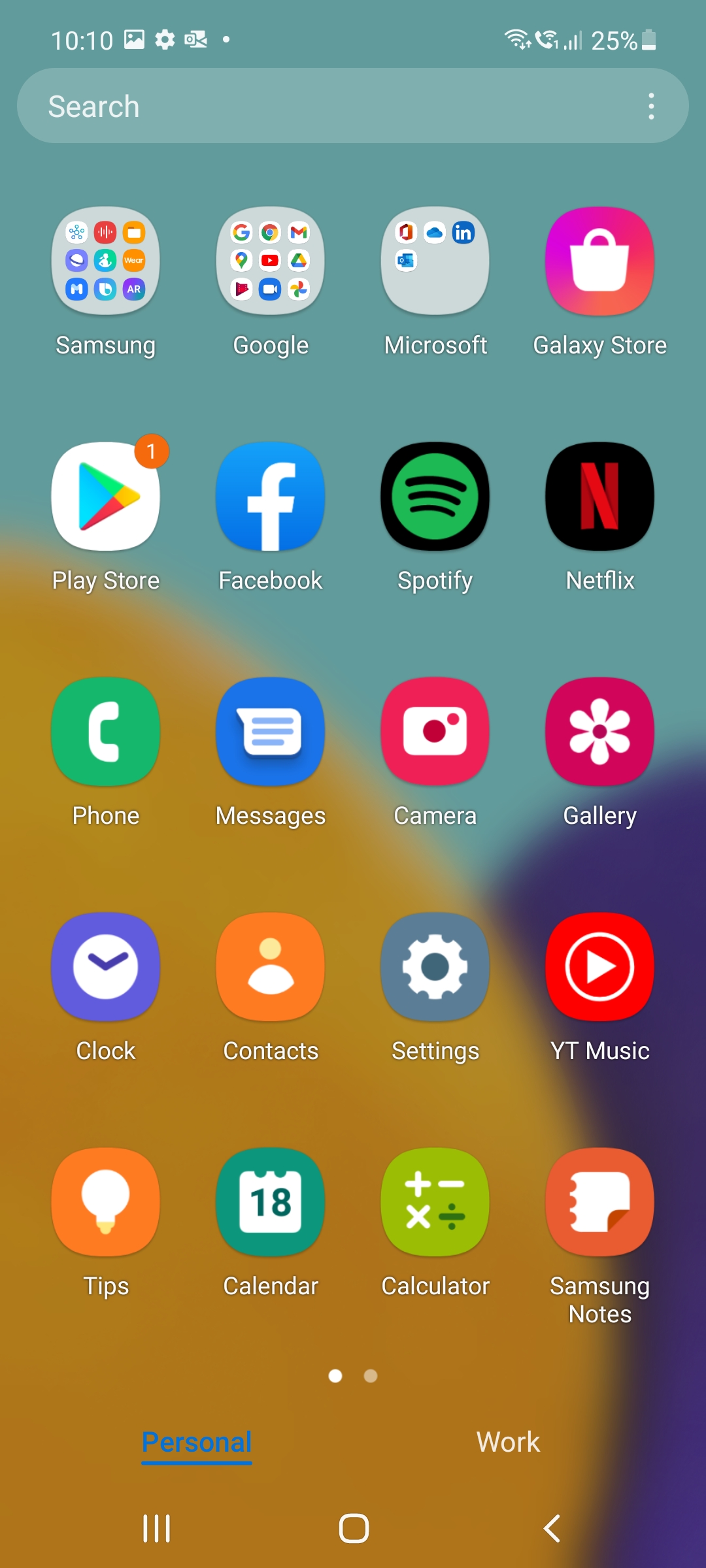
Open the Settings app.
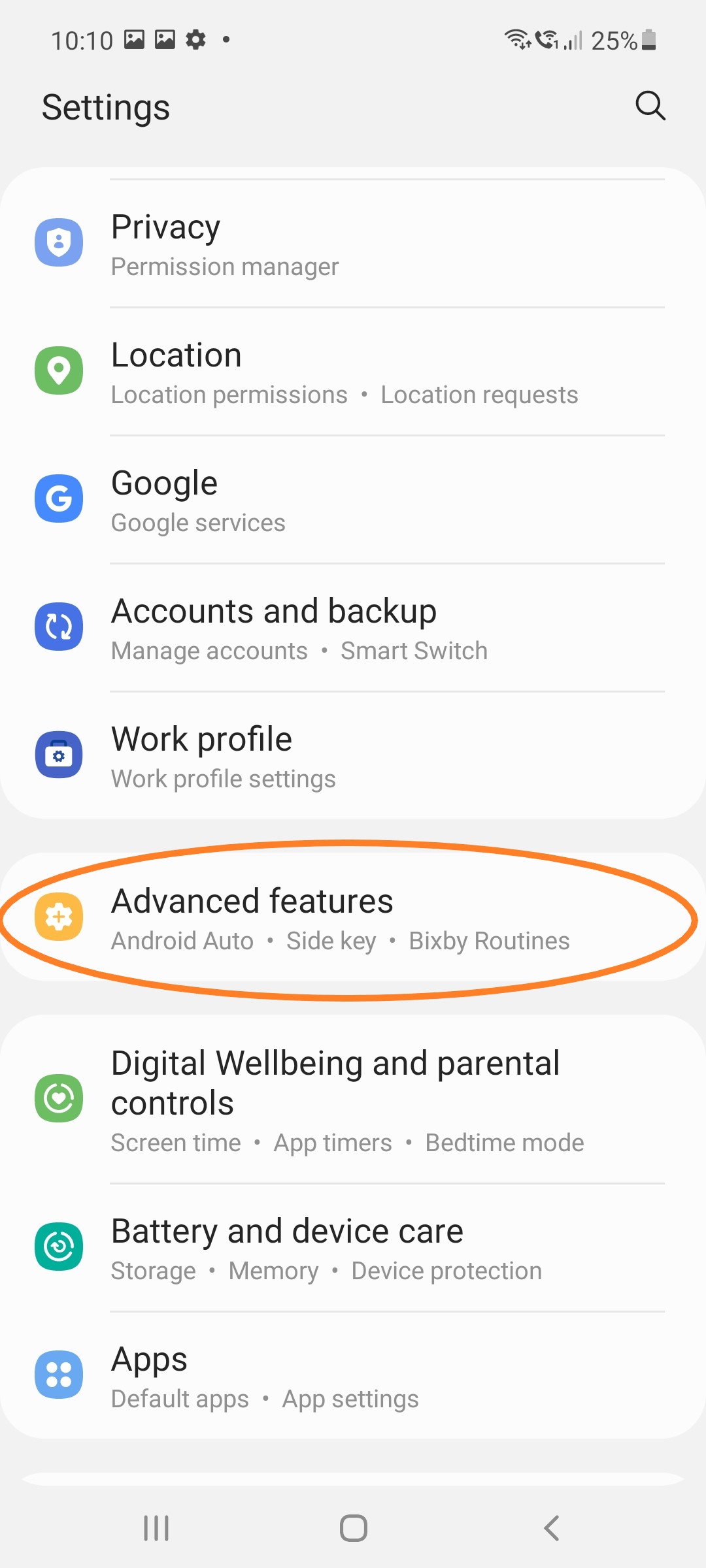
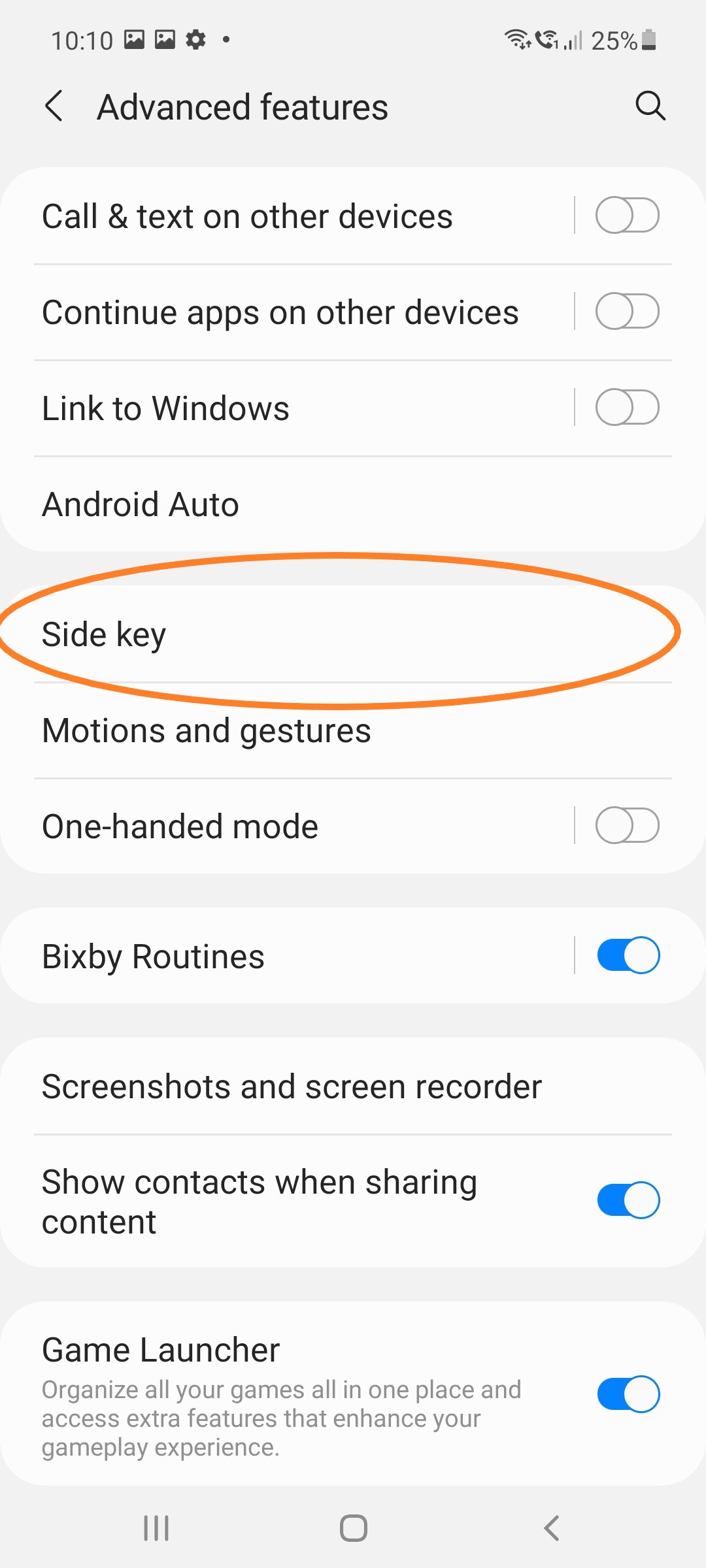
Tap Advanced features, then tap Side Key and activate the Power Off Menu under Press and Hold.
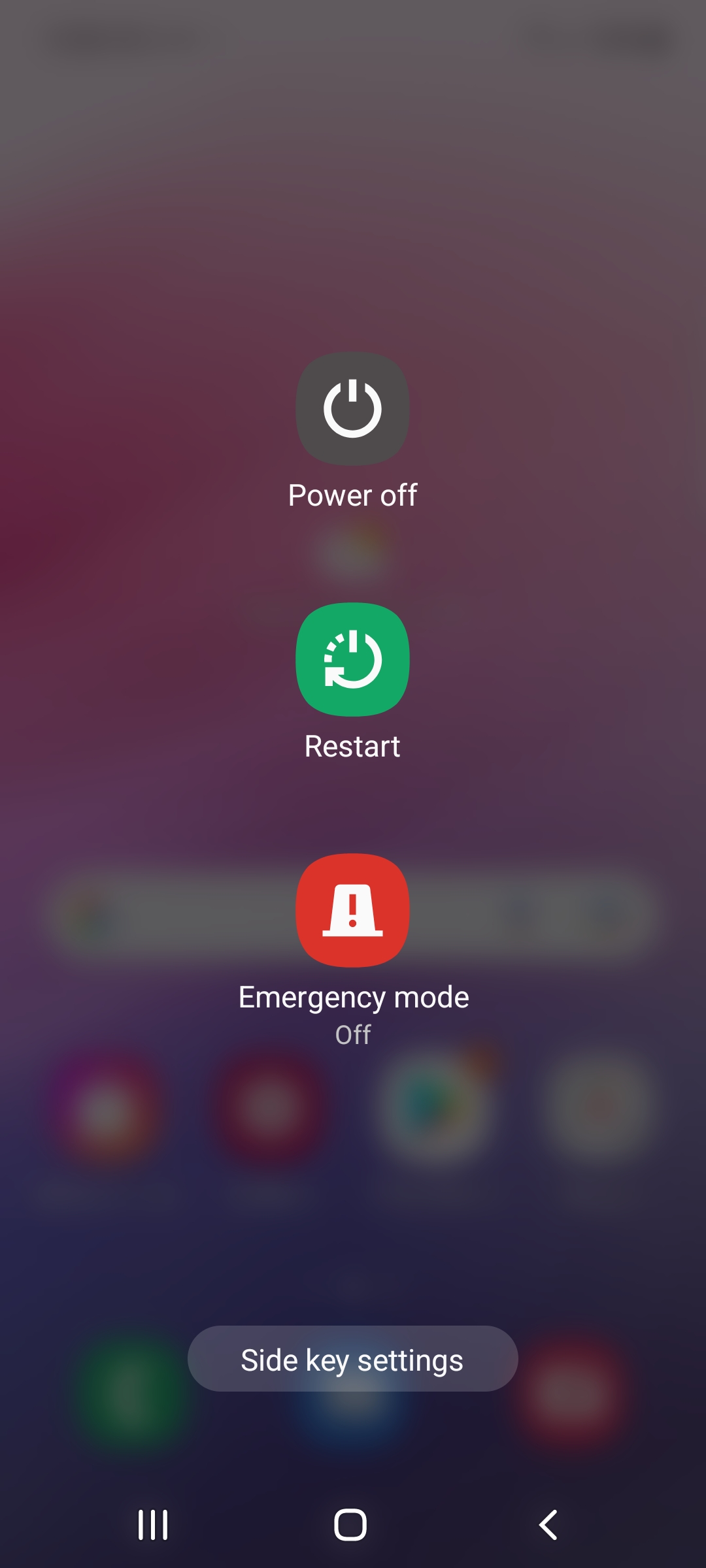
Power off menu
After pressing and holding the function key, the power off menu now appears.
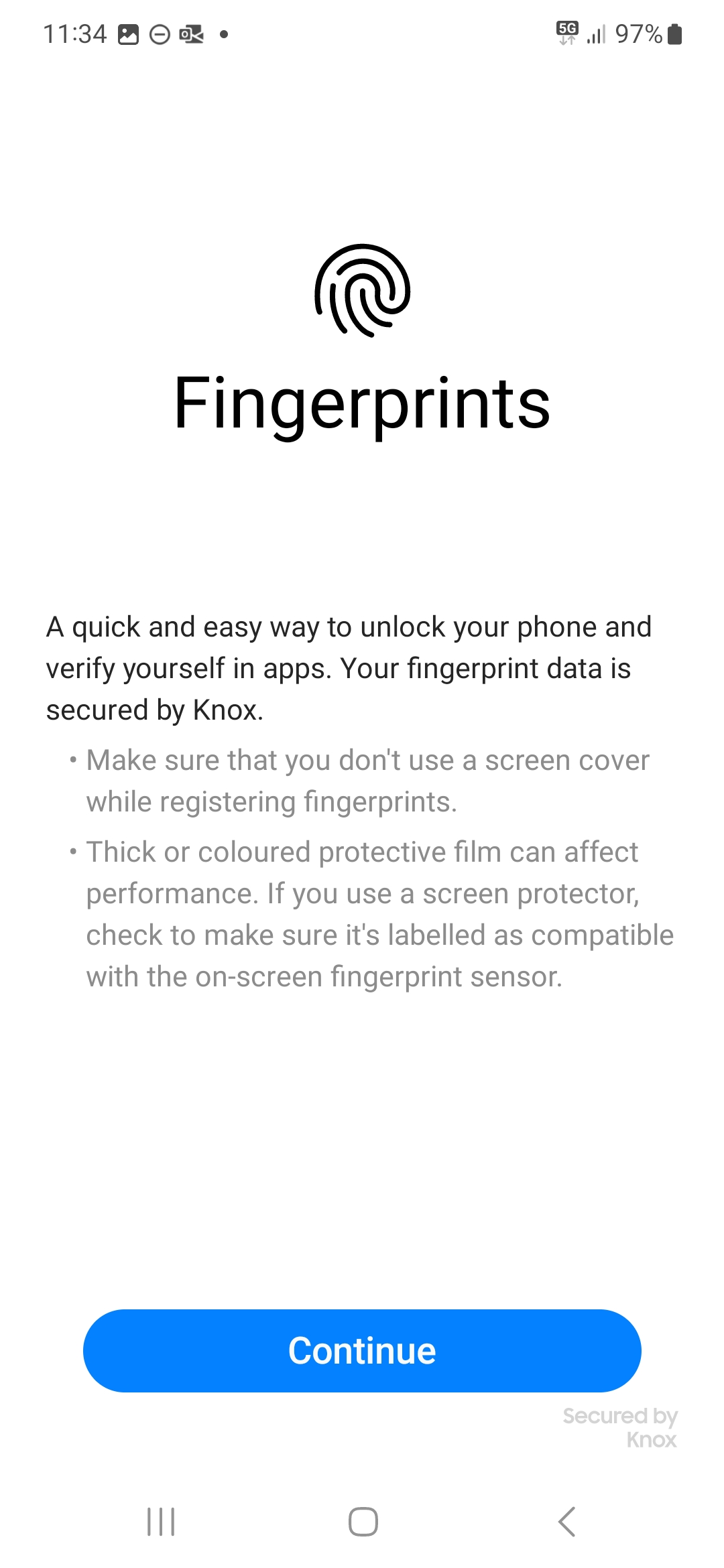
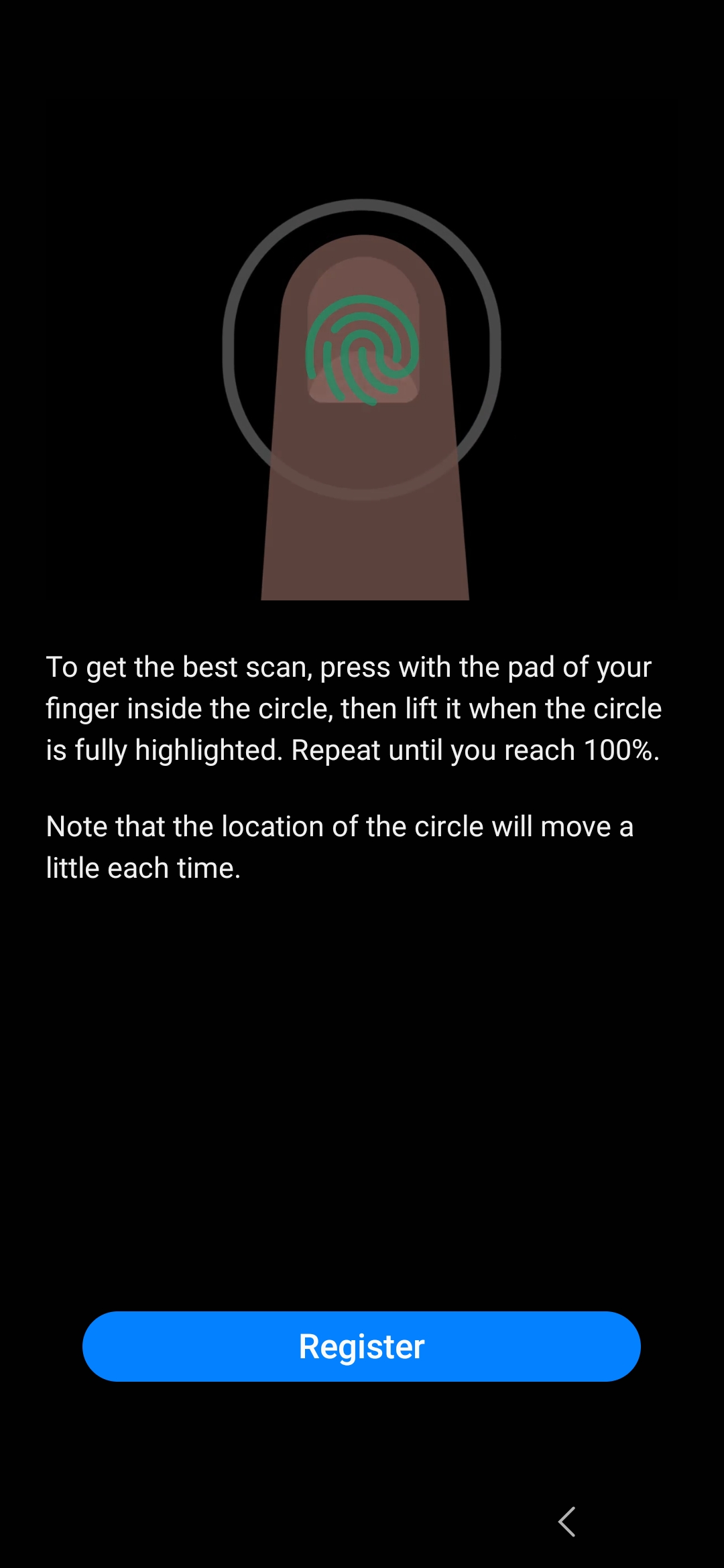
Use fingerprint to unlock the smartphone
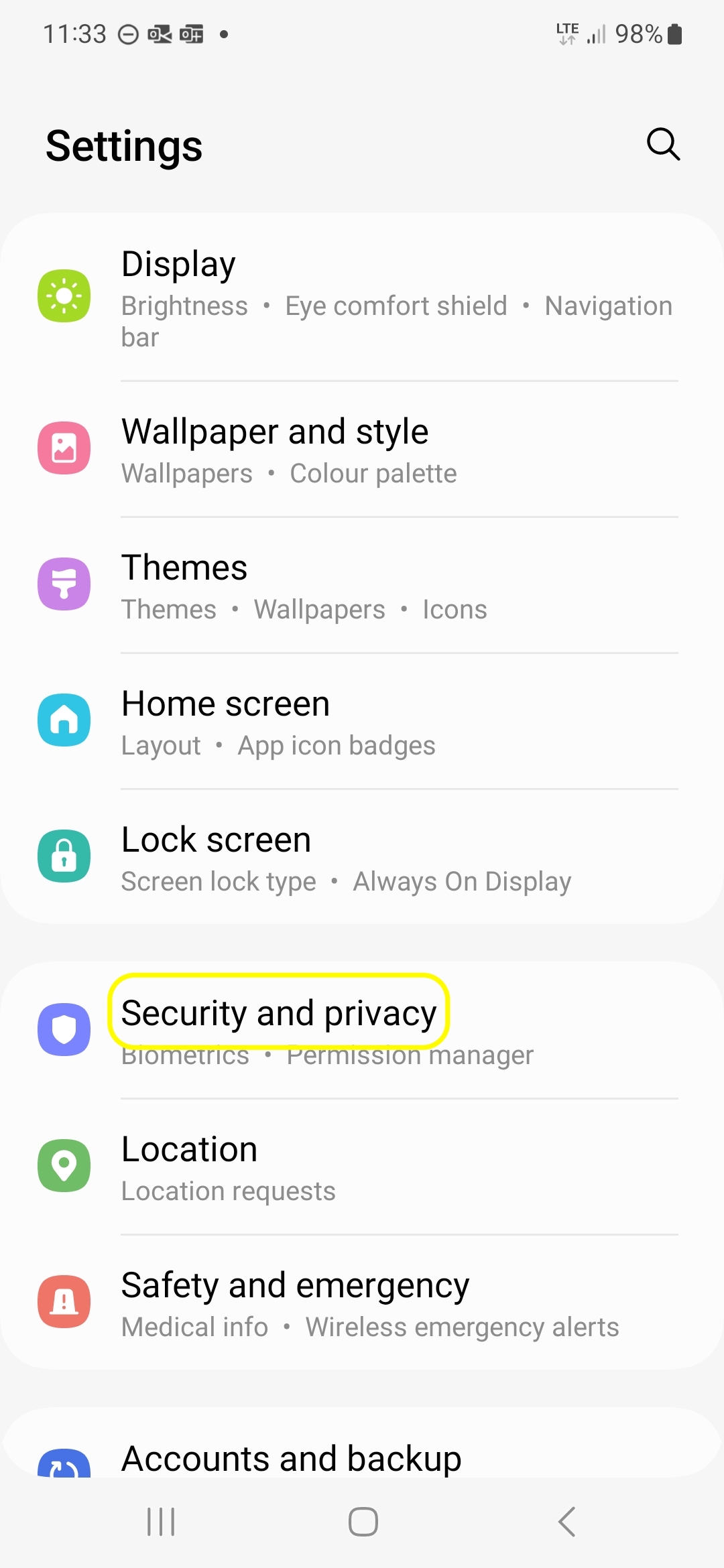
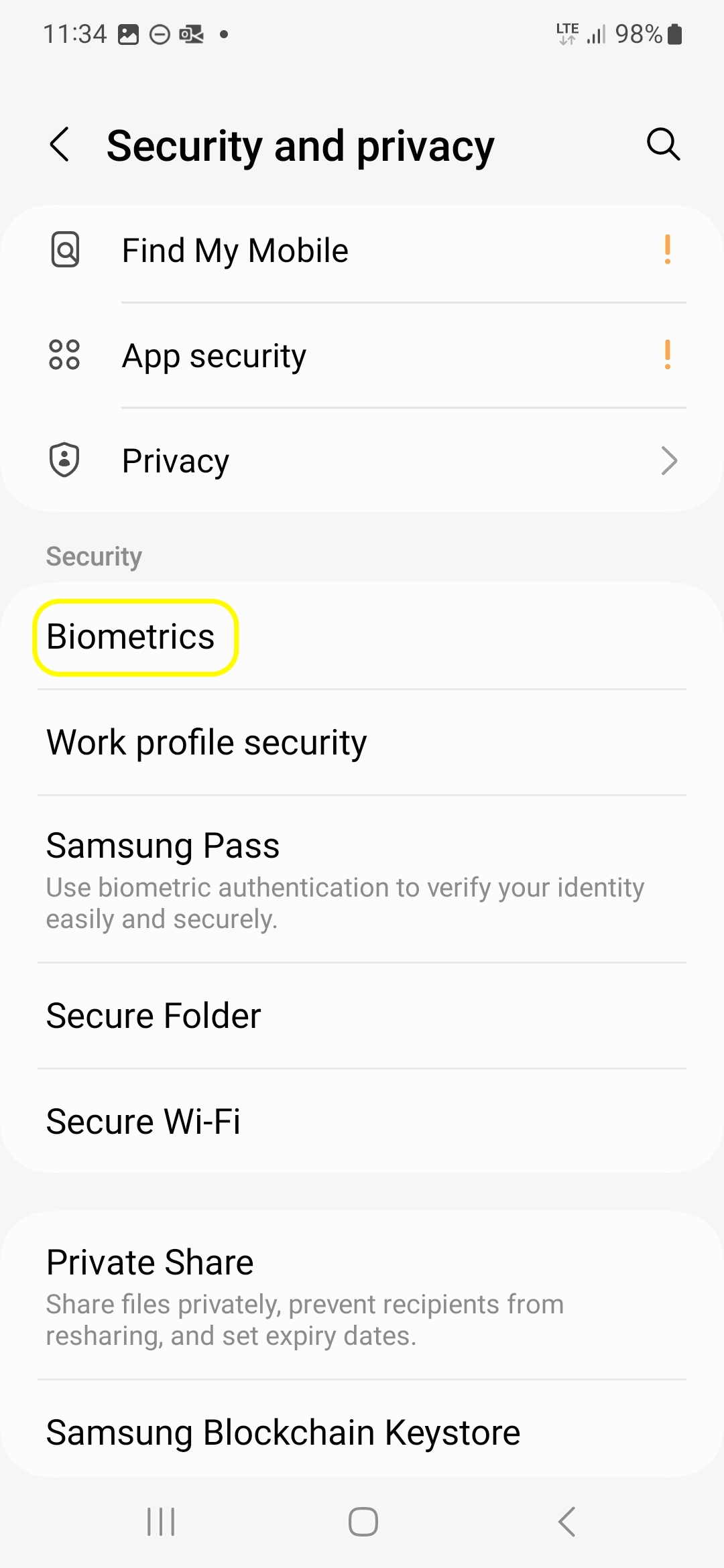
Open Settings on your homescreen and select Security and privacy. Tap on Biometrics and go to Fingerprints.
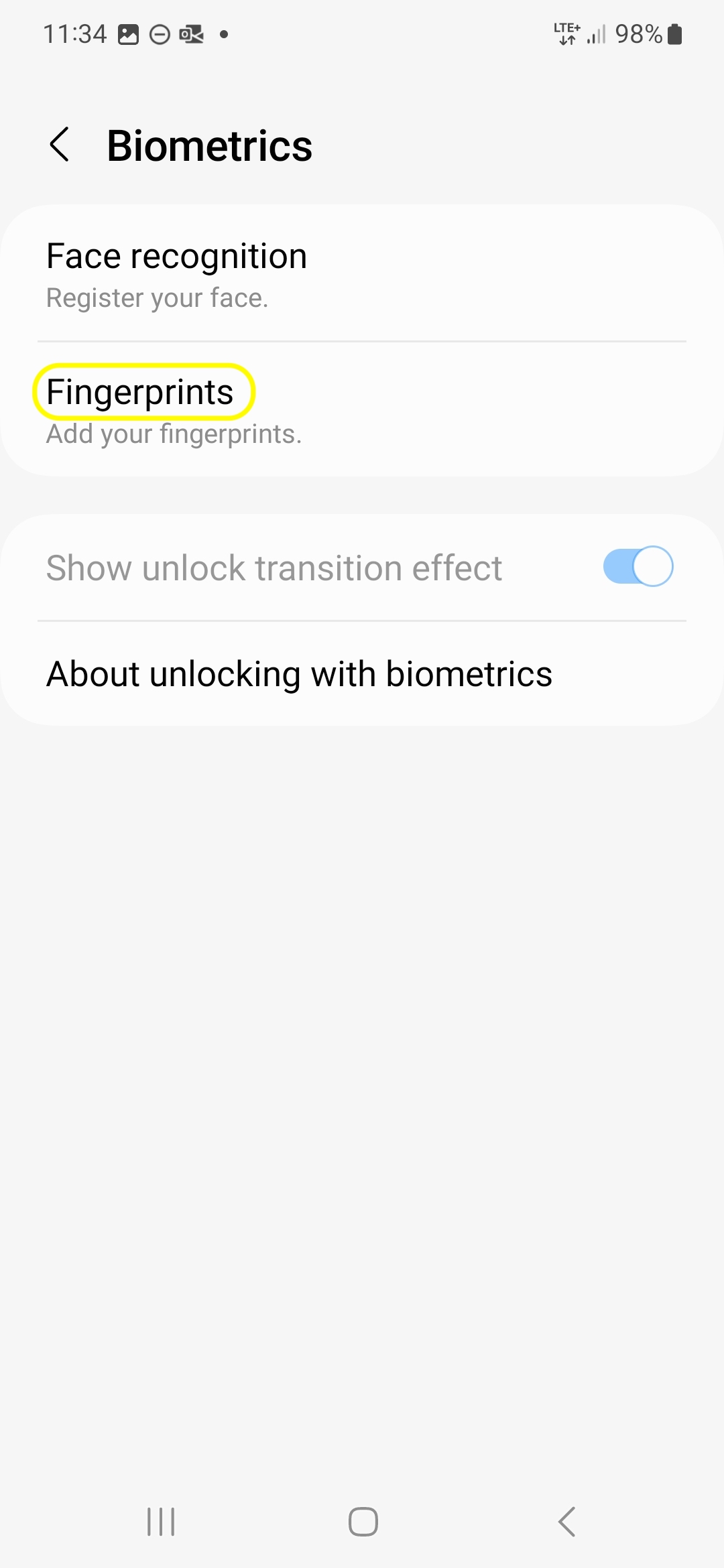
Enter your device code and follow the steps on the display.
9.5 Biometric data in work profile
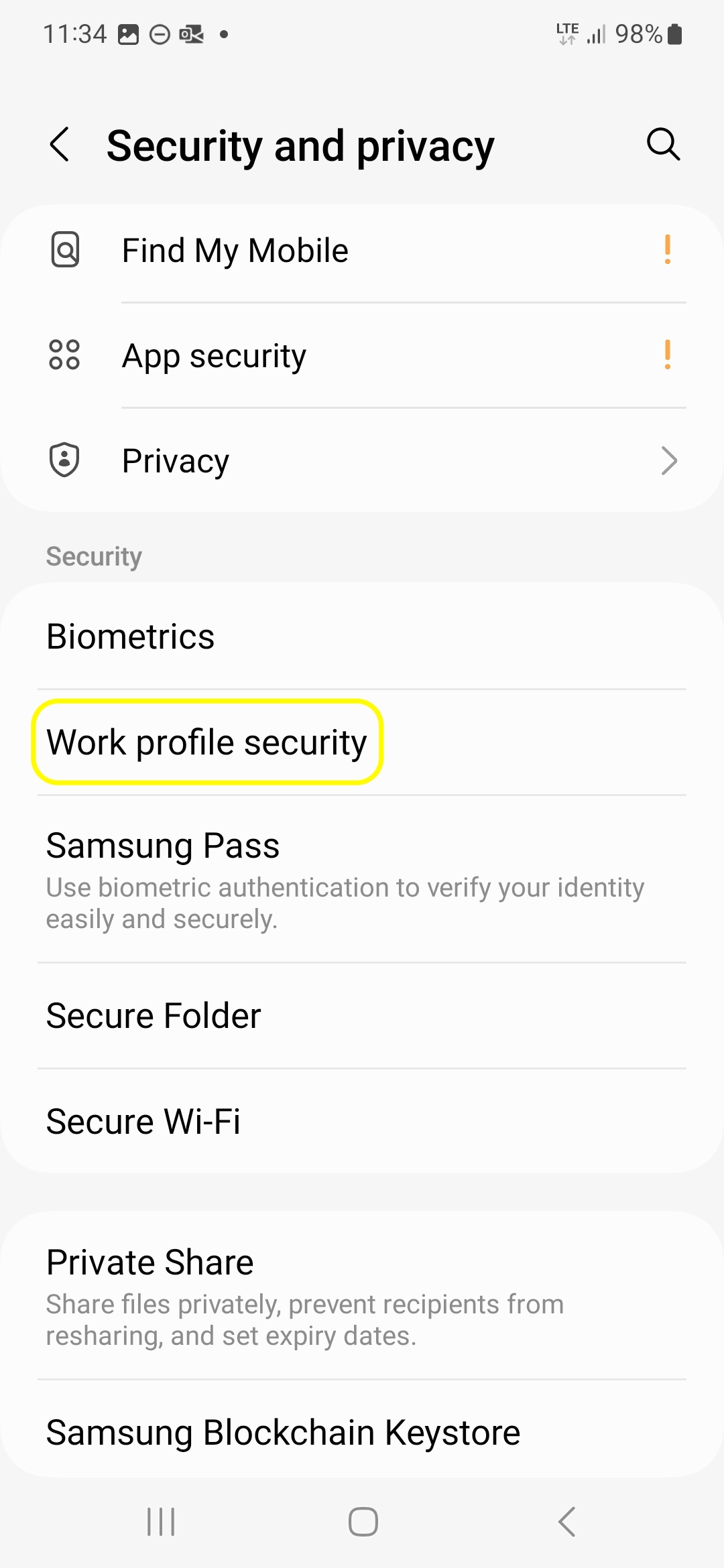
You have to configure fingerprints for work profile apps (Authenticator or KeePass App) separately.
Select Security and privacy and go to Work profile security. Tap on Fingerprints to add into the work profile.
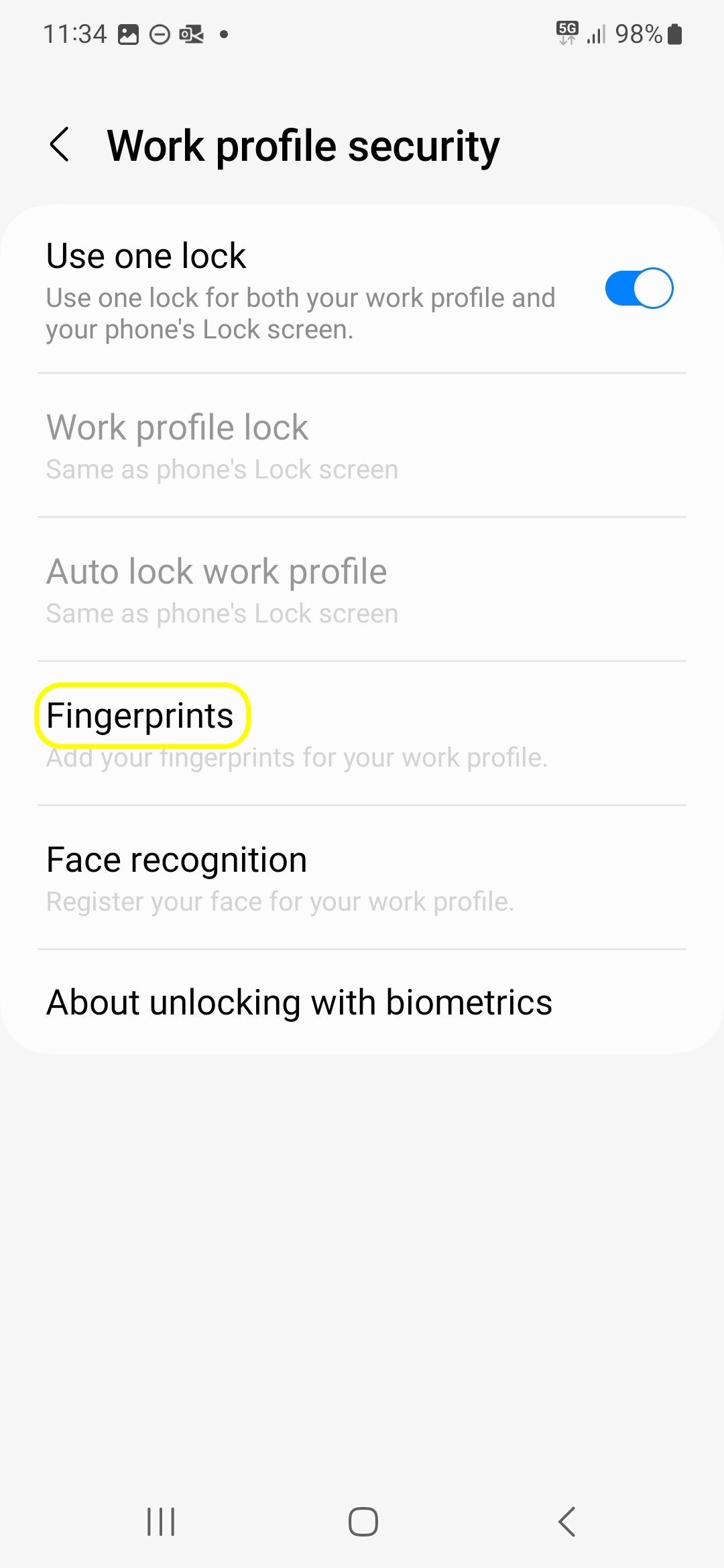
Enter your device code and follow the steps on the display.
Lookup your mobile phone number
We sent you an email with your mobile phone number. In case you'd like to lookup the mobile phone number follow these steps:
- Open Settings
- Tap Connections and select SIM manager.
Your phone number is listed as eSIM 1 and can be renamed for easier identification.